OneDrive Share Guide
This is a guide on how to share a file or folder through One Drive.
Share Through Windows File Explorer
Open Windows File Explorer and navigate to the file you wish to share. Select and then RIGHT click the folder to open the dropdown menu.
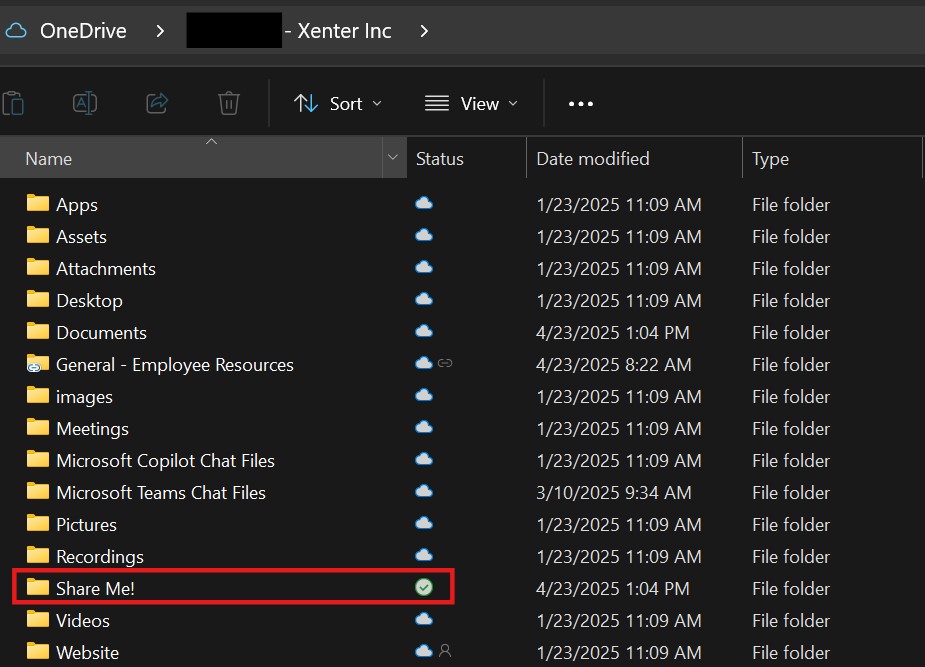
find-folder Select
OneDrivefrom the dropdown menu, thenShare. If OneDrive is not an option, you must first move the file into OneDrive.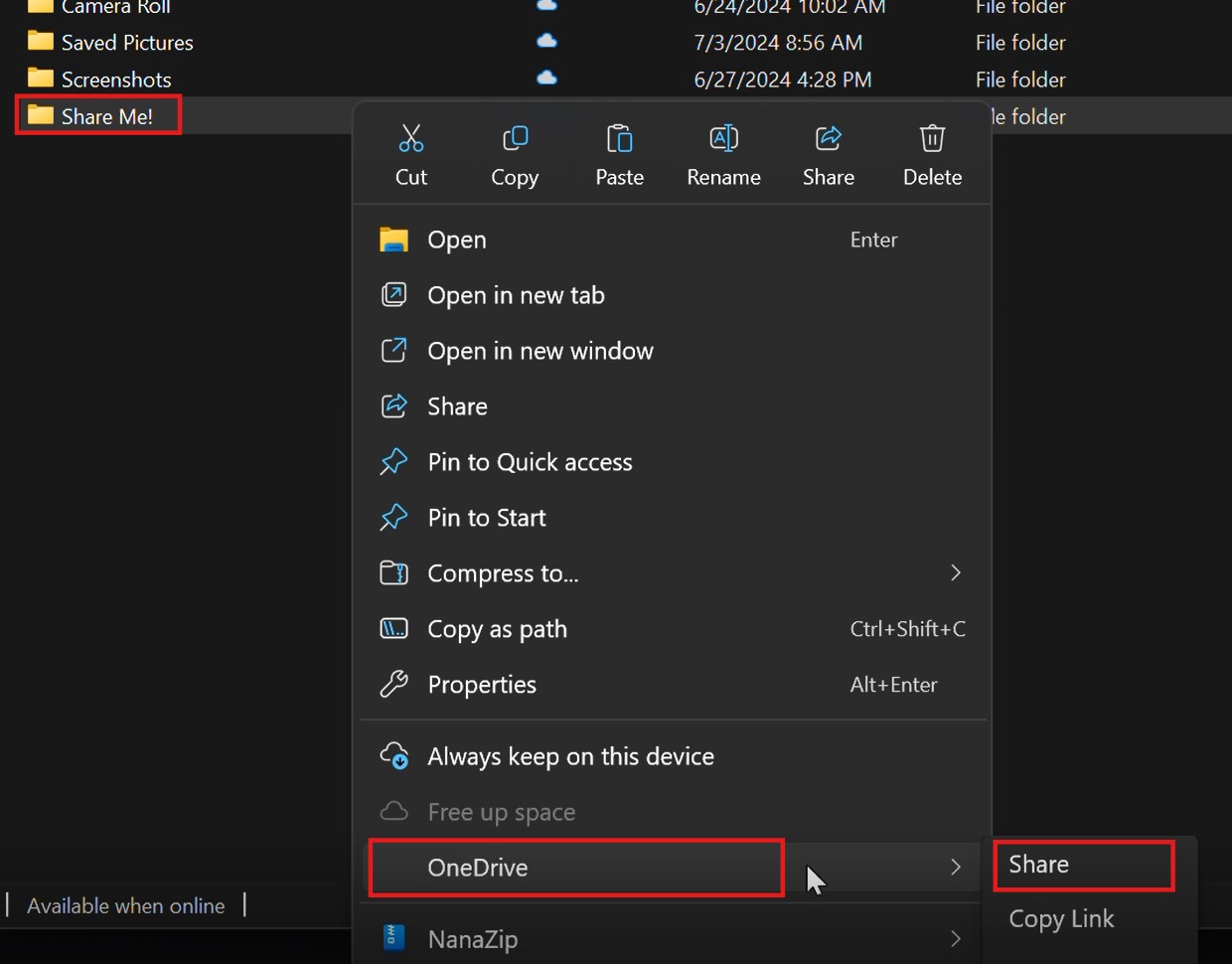
context menu Once you have opened the OneDrive share you can click the settings
gearicon in the bottom right to edit the share options. You can set specific restrictions in here.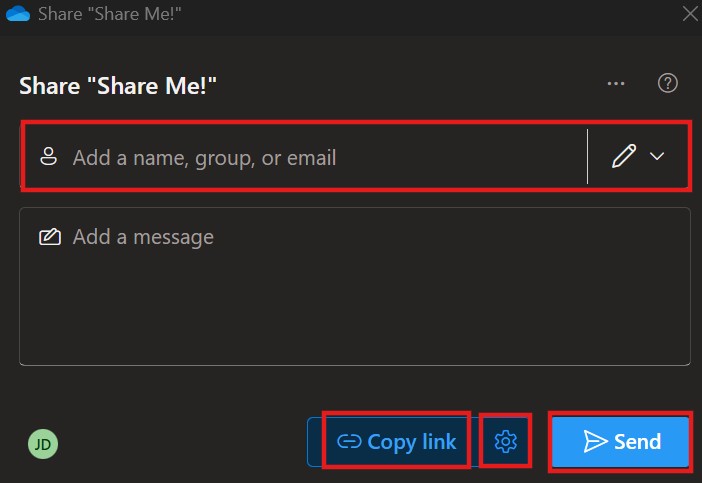
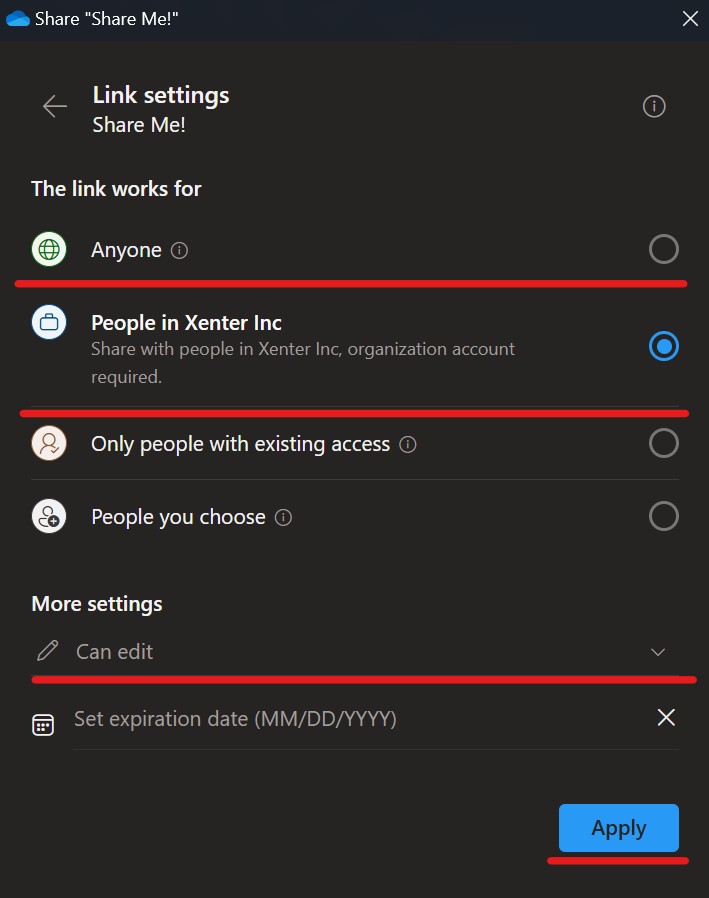
onedriveshare Anyone: Anyone will be able to view the file with having to login or get a verification code. This can be freely forwarded.People in Xenter Inc: This is the default, the file is ONLY shareable with internal employees that have a Xenter account.People you choose: This option is selected by default if you enter anybody email in the box in the previous screen. It allows ONLY those emails to access it, and they must get a verification code from their own personal email to ensure they are the intended user.More settings: Here you can set the permissions for the user to have, such as edit ability, as well as ability to download the file. You can also set an expiriation date for when the file will no longer be accessible.
link-settings You can either send the share directly to the user by entering their email in the box, or you can click
Copy linkand then paste that directly into an email to send to a user. If you enter the user email in the OneDrive share box then send with the button, it is only accessible to THOSE users.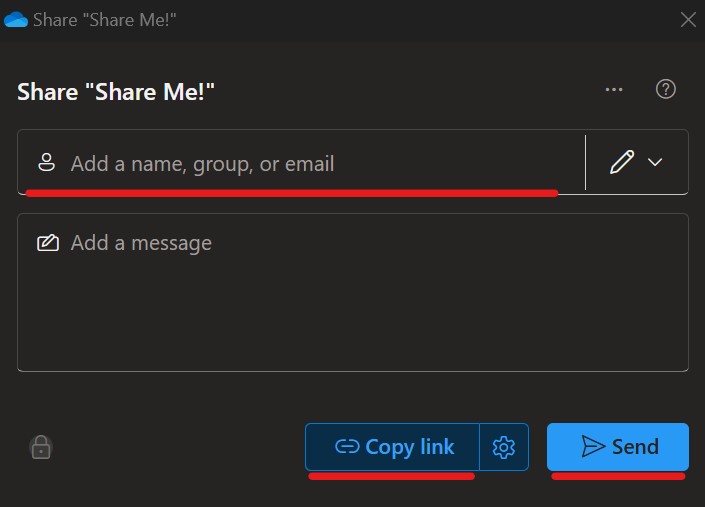
send-share 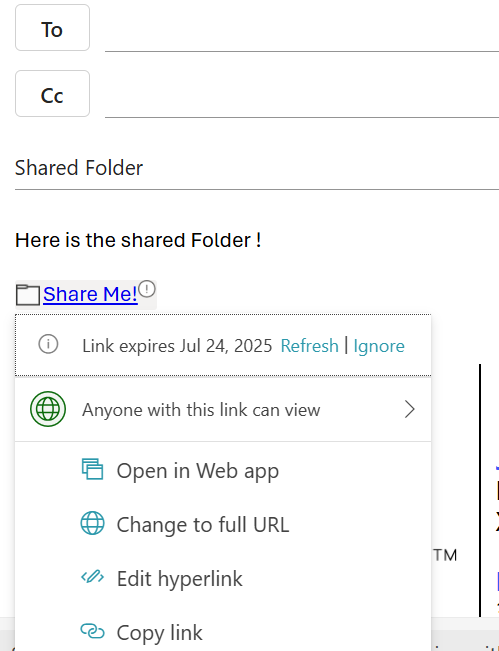
email-link